Making a Paper Heart Box/Party Favor

Yay! Time for another box-making tutorial! If this is your first visit to my site, you may find my other tutorials--Making Paper Boxes, Pentagon Boxes, Paper Envelopes, Triangle Boxes, and Box w/ Seprate Lid interesting. I love making crafts out of paper, and combining my skill with Photoshop and scrapbooking with it.

WARNING: If you have not done my early tutorials, you will likely not be ready for this one. This one builds on a lot of what we've already learned. Remember--milk before meat! You can't do projects like this one until you've learned the basics! So if you haven't--go spend some time on the early tutorials, and then come back!


Here is a photo of the boxes we will be making today:
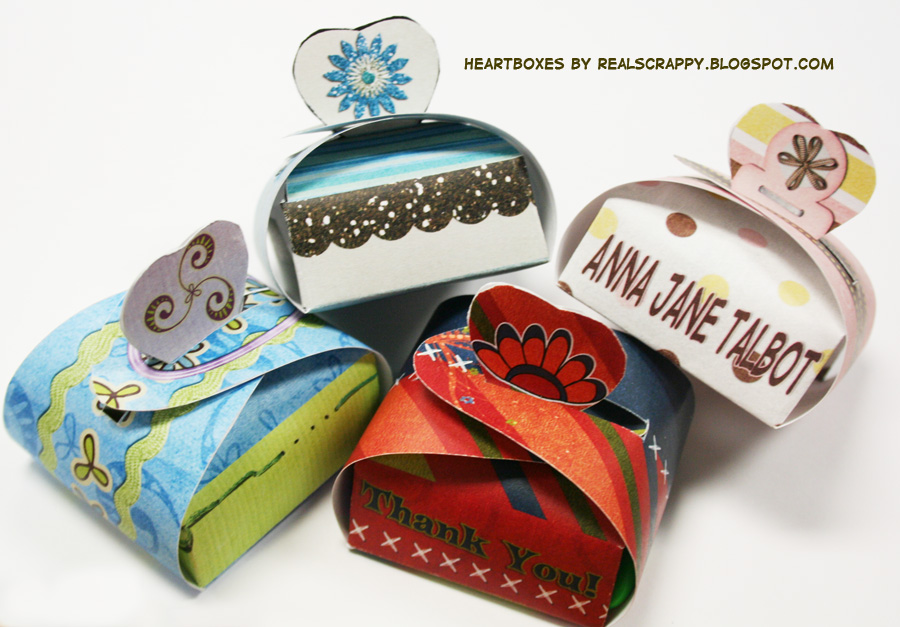

(for these boxes, I used the kits My Baby Girl by Connie Prince,   Summer's End by Elemental Scraps, Essential Spring by Lindsay Jane, and Mystique by Lindsay Jane.)
This box dates back to about three years ago when I attended a baby shower for my sister-in-law. The host had these darling party favors that were boxes just like this. Inside she had little mints to eat. I thought it was adorable and kept mine. I think I still have it...somewhere. Anyway, I scanned it into my computer and pulled it into Photoshop, and then created the template for this box. So this box is great for a party favor--that's what I really like about it. You can use it for things like baby showers, valentines, even as little thank you's instead of a thank you card.
 
Heartbox Template
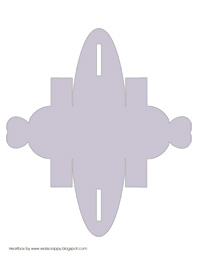
 
So this one is actually very simple. In fact--more so than my other patterns. The only tricky part is cutting it out--it's very curvy and you have to cut out the little slits.  BUT, there is no gluing and very little folding. It's so simple!
 
*UPDATE* 1-1-18 - You may download this template from my Teachers Pay Teachers site. It is still free. It includes the Photoshop and PSD template, as well as four pre-designed ones ready to print and cut!

DOWNLOAD HEART BOX PATTERN HERE.


Making the Box in Photoshop
 
1. Download the template, and unzip it. Pull up the file in Photoshop. You will notice there are TWO layers--one says "lines" and the other "fill."
 
2. Pull up the kit you would like to use, and pull in the background paper you will be using.
 
3. Place the paper's layer ON TOP of the "Fill" layer. Then CTRL+Click on the Fill layer. You will now see dancing ants all around the box shape.
 

4. Click on the paper layer and do CTRL+C and then CTRL+V. You now have another copy of the fill layer, only now your paper is in the shape of your box.


5. Using this technique, continue to decorate your box as desired. A lot of times I will pull in another paper, do the same steps, and then use the marquee tool to highlight certain sections and delete it.


6. Print on cardstock if you can--it's much firmer and better for this kind of thing.

Folding the Box

Now that you have it printed, puting it together is super easy!


 1. Print it on cardstock. It should fit just fine on an 8 1/2 x 11 page.
2. When you cut it out, you have to cut out the slits on both ends. I have made these slits a little fatter than the original box I had, so that it's easier to cut them out with scissors. But for a cleaner look, use an exacto knife.


3. Now fold it. This box has only six folds--and they are all very easy to do. Fold the two sides, and then the flaps on both. You CAN glue those two flaps if you want, but there's really no need. Without gluing, the box will still easily hold candy that won't fall out once the whole thing is folded.


4. Next, pinch the two hearts together. Then pull one side over and slide the slit over the top of the two hearts. Then do the other side.


Notice that you can also add candy to inside your box. I fit the entire contents of a standard size of M&M's in one box.


RealCrappy - Bulky Pages

It has been SO LONG since I did a RealCrappy post! But I'm sitting here and I was staring at my last paper scrap book, thinking, there has GOT to be something in there that I can blog about. And it didn't take long. I was tempted to do the whole post, not on bulky pages, but on just old SCRAPBOOKS THAT FALL APART because that's why these pages are so accessible at the moment. This is what the book looks like right now:

This is the only book I ever did using an "inferior" non Creative Memories scrapbook. And, I have to admit, Creative Memories had a point. None of THOSE book have fallen apart. Well, the spines tend to fall out, but the pages stay nice and firmly put. This one is a complete mess. One of the screws is gone and I have no idea what do to with these loose pages. Yes, I could buy a new book and easily insert each page into a new page cover. But on principal I refuse to spend any more money on paper scrapping. So...it just sits like that. Forever.

Anyway, I wanted to do this post on Bulky Pages. This being my last paper scrapbook, it's probably my best. Or I should say, my least annoying. Its from 2001-2004. Some of the pages are actually quite nice--I  wanted to prove that not ALL my paper pages were total crap! The ones I am using for this post aren't really bad. They are just--bulky. They are the reason this book fell apart in the first place. The elements on the page just take up too much space in the wrong direction.

This first page, I actually really like. It's always been one of my favorites. But the elements I like so much about it are the printed elements--things I can easily copy in digital scrapbooking. In fact, I'm pretty sure I could re-create this page digitally without too much trouble. What makes it bulky is that darned element--the ribbon and the envelope and the seal. It's my favorite thing about the page, but it's just so big an awkward. And that ribbon is tattered from how it originally looked, because it's always falling out the top and getting rubbed. I just hate that. It would look so much neater if it were digital! (And can you believe I wore those awful suspender shorts? What was I thinking???)

This next page has pretty much an unforgivable amount of froo-froo. I've never been a froo-froo scrapbooker--I think this is the foo-iest ever page I ever did. But it drives me nuts to look at it. And I remember how proud of it I was once. I just hate it when elements take over the whole page (in this case it's like an invasion) whether it's digital or paper scrapped.
Man. I just realized I have to get this page back into the page protector. It's going to be a nightmare. Remember that? It gets caught on one side then the other, and this one is going to take a good five minutes to get back in...

I have another page I don't want to hunt down where I used my little "wire" contraption to make shapes and stuff. Cute page. Very bulky. Totally not worth the effort to do. I think paper scrapping just gets bulkier and bulkier all the time. Those books are so stinking thick--where in the world do you store them???

School Poster--How I Did It! (using Photoshop)

I thought I'd just do a quick post showing off a project I just completed for my school, using Photoshop. One of the things I always tell people when they are considering learning Photoshop and digital scrapbooking is that the program is so versatile and can be used in so many different areas of your life. I have three posts about other ways to use photoshop, if you haven't read them you might want to! 1, 2, 3.

Anyway, here's the poster that I created, and I didn't use ANY kits.

I have seen some pretty amazing things people create with Photoshop, and sometimes it drives me crazy--HOW did they do it? Tell me! I want to learn something new! So although this can't come close to competing with some of the amazing kitless pages I've seen on blogs like Stefstyleblog, (HOW do you do all those amazing pages! It's a mystery!!!) I WILL tell you how I did some of the elements on this page.


First of all, I managed to get the blood spatter and the fingerprint off of google images. Both required me to use the magic wand to get rid of the white background. The fingerprint was especially tiresome to do, but it turned out beautifully.

For the background, I just started with a green square. Then I used a few filters on it. First, one of my favorites, the Render>Lighting Effects filter. I used the Spotlight for light type, then just messed with it until I had the look I wanted. The other filter I used was Filter>Noise. This is what makes the background--well, noisy. A little scratched and not so pristine. I think that's all I did with the background.

Then there was the text. I wanted to make it look Neon and as much like the TV show as possible. I did a search for "CSI text" and found a website that said that the Clicker font was most similar to the TV show. I downloaded the clicker font for free--don't even remember where. It was easy to find. Making it look neon was a little harder--I have no action for it and had no idea how to do it. So I did a simple google search for "neon text in Photoshop" and found this simple tutorial. There were plenty to choose from, but I liked how easy this one was.

As for the police tape, I just made that. I used my shape tool to draw the yellow line. Then I went into Layer Styles, Gradient. I created my own gradient with the colors I wanted. Then I just added the text. I did the same thing with stripes--just copying and pasting the black on top of the yellow how I wanted it. It was actually quite easy!

So there you have it. Sometimes I am baffled by my own cleverness. Then I see what other people can come up with in Photoshop and realize I'm a total beginner all over again. There is just so much to learn!

Getting Organized for 2011 -- How *I* Do It

Sorry I haven't posted for a while. I'm in a bit of a slump. I usually am after I publish my new yearbook. I'm a little burned out, need a break. And the idea of starting ALL OVER AGAIN is a little daunting. Last year I don't think I actually started my 2010 book until about May. But, I LOVE that I am completely caught up on my scrapbooking and I don't want to lose that! My world is paper scrapped from when I was about 16 to when I met my husband. Then everything is scrapped by the year since then. I love that organized feeling. It makes me happy. And seeing as I have THREE books to work on this year, I'd better get cracking or I will not be able to stay this way! So far I've only done one layout for my 2011 yearbook. Not so good. But not so bad--at least I've started! I also need to eventually start my 1-year baby book for each of my twins when they arrive. I thought about doing one book and making two copies, but I just can't bear to do that to them. They are both individuals and deserve their own books. If some of the pages are exactly the same, or only different in color, kit, or wording, then that's just fine. I'll probably do a lot of that.

So, here's what I do to start a new year and my new books:

1. Organizing Photos: Move all my 2010 photos in to a new 2010 folder. Move my 2009 photos into my external hard drive. I always keep the previous year handy becuase I still use them occasionally. Create new folders in my Pictures for January, February, and so forth. I usually create the files as I go, not all at once. Put all uploaded photos into their appropriate month. Again--I do this as I go. I make sure that when I upload photos, they are saved by date.

2. Organizing Book Files: Next I delete all the .psd files for my 2010 book. My book is saved as "Year Five" in my "Works in Progress" folder. I now move the .jpg's to my "Finished Books" folder. I create three new folders: "Year Six", "Ripley's Book" and "Scarlett's Book." I probably won't do much more on the twins' books until they are born, though I am on the lookout for some good kits to use. But all the more reason to make sure I'm all caught up with 2011 before they arrive!

3. Organizing Next Year's Book: Now I open my Excel file and delete out all the old stuff, re-saving it in my new Year Six folder. If I already have some ideas planned, I put them in. I can always move or change them later. This is just the way I do it personally--I like to be organized and I LOVE Excel, so this sheet helps me plan a lot. I know some digi-scrappers just do whatever they want in whatever order, but I just can't live that way!

4. Layout Design Plans: Ok, next I think about how I'm going to organize this year's book--do I want to do it the same way as last year? Do I want to change it up? Last year I did a month page for each month--just a dual layout for each month with pictures from that month's events, and also those pictures that are cute but I don't want to do an entire layout about. I think I'm going to do that again this year, I liked it. But I've been toying with the idea of using the SAME kit for an entire month. Only use 12 kits, and all the events of that month are in that kit. My sister did a book where the whole book was just one kit. It was very cute, very uniform, and easy to read through. Not as shocking to the senses. But...I think I'd get bored. So I don't think I'll do that. But I MAY do that for the twins' books.

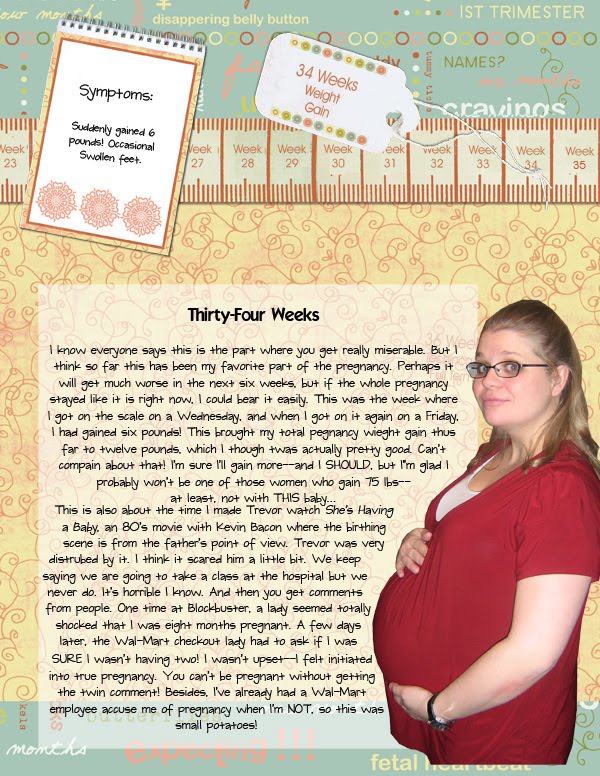
I also want to think about how I'm going to document my pregnancy. With my first pregnancy, in that book, I did a dual layout every once in a while documenting my growth. So I had a "4 weeks" page next to an "8 weeks" page. Then there'd be a few other pages, and then a "10 Weeks" page with a "14 Weeks" page, and so forth. They all used the same background, had the same velum background, tag, and notepad, as shown above.

I don't want to use that many pages this time, though. So now every few weeks I write a short paragraph about my progress, and I'll probably do a four-page layout for the whole thing. I'm also making sure to take progress pictures every few weeks!

So that's how I get started. But here's the thing:

I'VE DONE MOST OF THAT NOW.  You know what that means? I need to actually START SCRAPBOOKING. No more procrastination!!